
Google Tag and GTM Are Converging: What Changed, What We Tested, and What to Do
Google now offers an optional upgrade that turns your GTM container into the Google tag itself, so GA4 and Google Ads receive data from GTM without a separate Google file, with their settings in a new Settings tab. We upgraded a real container and tested it. The extra file does disappear, and the upgraded container stored ad click IDs without Conversion Linker on a single site. But an automatic event such as scrolls or file downloads fires only when both the container and GA4 allow it, a leftover pasted Google tag can override the container or double page views depending on one checkbox, and catch-all triggers now receive gtag.config and GA4 automatic events. I would still do the upgrade, with a before, during and after checklist, because future changes to Google's tags will build on it.
 Rudranil Chakrabortty
The short version
Google has merged its two ways of putting tracking on a website. Until now, you had a choice. You could paste the Google tag, the small piece of code that GA4 and Google Ads give you when you set them up, or you could install Google Tag Manager (GTM), a free tool that lets you add and manage tracking for many tools from one interface, without editing the website each time. Under the hood, the two shared the same engine, but Google ran them as separate products, so many websites ended up loading that engine more than once.
That is changing. Google now offers an optional upgrade inside GTM that turns your GTM setup into the Google tag itself. Google announced the plan in May 2026 and started offering the upgrade in October. Nothing changes until someone on your team clicks the upgrade banner and publishes, and you can reverse the upgrade. Once you accept it, here is what you get:
- One file instead of several. GA4 and Google Ads receive their data straight from GTM, so the extra Google file that used to load for each of them is gone. Google says this makes pages faster and data collection more reliable.
- One place for settings. The settings for GA4, Google Ads, and Floodlight now live together in a new Settings tab inside GTM, so you no longer have to keep them in sync across separate tools.
- A history for every setting change. Settings changes now go through GTM’s usual process: you can preview them before they go live, see who changed what, and roll them back. Before, a change made in GA4 went live immediately, with no history.
- GTM inside GA4 and Google Ads. The upgrade links your GA4 and Google Ads accounts to your GTM container so that the container can be opened from inside those tools, and people who work in them can see how tracking is set up.
- Clearer debugging. GTM’s Preview mode now shows the data sent to Google and the settings applied for each event, all in one view.
Why now? Running two overlapping products created odd setups that Google kept patching, and it wants to keep its data collection under one roof. A smaller change on October 8 is part of the same clean-up: GTM no longer waits for a setup instruction from the page before it starts. If your website uses only GTM, which is the most common setup I see, that change doesn’t affect you.
My take: this update was due, and it is architecturally important for Google, but for most businesses it is hardly revolutionary. I would still do the upgrade, with thorough testing, because future changes to Google’s tags will build on it.
Business owners will mostly not notice any of this. The people who manage GTM should, because the upgrade can change what GA4 records.
First, the basics: how tracking gets onto a website
Before we get to the merger, we need a handful of ideas. If you work in GTM every day, skim this section. If you don’t, the rest of the post will be much easier to follow with these in hand.
Let’s take a simple example. Say Meera visits an online jewelry store, looks at a pair of earrings, adds them to her cart, and buys them. The store’s marketing team wants three tools to know about this. GA4 should record the visit and the purchase, Google Ads should record the purchase as a conversion (so it can tell which ad brought Meera in), and Meta should hear about it too, for its own ads. How does each tool find out?
Tags
Each tool learns about Meera’s visit through a tag: a small piece of code that runs in her browser while she is on the website and sends a message to that tool. The GA4 tag sends “a page was viewed, this page, this browser”. The Google Ads tag sends “a purchase happened, worth this much”. Every marketing tool you use (GA4, Google Ads, Meta, LinkedIn, Microsoft Clarity, and so on) has its own tag, and each one sends its own messages.
Every tag also carries an ID that the tool gives you. The ID is part of the tag and uniquely identifies your account among the hundreds of thousands of accounts running on that tool, so messages from your website reach your account and nobody else’s. A GA4 ID starts with G- (e.g., G-4N3X4MVJWD), and a Google Ads ID starts with AW-. We will come back to these IDs later, because they matter more than they seem.
Tag managers
You could ask a developer to paste every tag into the website’s code. Most teams don’t, because every new tag, or every small change to one, would then need a developer and a website release. That is where a tag manager comes in. You install one piece of code on the website once, then add, change, and remove tags inside the tag manager’s interface. Google Tag Manager (GTM) is Google’s own tag manager, and it is free.
Everything you build in GTM for a website lives as a set of rules and instructions inside GTM, with its own ID starting with GTM-. You build those rules with three building blocks:
- Tags send the messages, as above (a GA4 page view, a Google Ads conversion, a Meta event).
- Triggers decide when a tag runs (on every page, when someone clicks a button, when a purchase is completed).
- Variables hold the values that tags need (the order value, the product name, the page address).
So, for Meera’s purchase, the rule in GTM reads like this: WHEN a purchase is completed → RUN the GA4 purchase tag, the Google Ads conversion tag, and the Meta tag → WITH the order value and the products.
Events and the dataLayer
How does GTM know that a purchase was completed? The website tells it through the dataLayer.
The dataLayer is a simple list of entries that runs on Meera’s computer or mobile, inside the web browser (e.g., Chrome) where she has opened your website. It loads and becomes active as the website opens on her device. From then on, the website writes entries into it as things happen, and GTM reads each new entry as soon as it arrives. When Meera completes her purchase, the website writes something like this:
dataLayer.push({
  event: 'purchase',
  transaction_id: 'ORD-10482',
  value: 81009.26,
  currency: 'INR',
  items: [
    { item_id: '20', item_name: 'Royal Dewdrops', item_category: 'earring', price: 81009.26, quantity: 1 }
  ]
});
Each entry with a name like purchase is an event. The rest of the entry carries the details: the order number, the order value, the currency, and the products Meera bought (here, one pair of Royal Dewdrops earrings). GTM sees the new purchase event, checks which triggers are waiting for an event with that name, and runs the matching tags, passing the details along to each tool. GTM also writes a few events of its own as the page loads, such as gtm.js when GTM has loaded and gtm.dom when the page’s content is ready, so that tags can run at the right moment.
That is, the dataLayer is how the website tells GTM “something happened”, and the event name is how GTM decides what to do about it. Keep that with you, because the whole story of this update is about who writes what into this list, and who reacts to it.
Testing, submitting and versions
One more thing, because it explains why GTM changes are safer than editing a website directly. Changes you make in GTM don’t become active immediately. You test them first in Preview mode, which opens your website alongside a panel called Tag Assistant, showing every event and every tag that ran or didn’t. Once you have confirmed that everything works, you submit the changes. That makes them live on the website, and from that moment, they affect every visitor.
Every submit is saved as a version. That is, the previous state of your GTM setup is still available, so if something goes wrong later, you can go back to it.
We will use Preview mode a lot in this post. Most of our findings come from it.
Two ways to do one job
Now we can look at the two products this update merges. Both send data to Google’s tools, use the same dataLayer, and have existed side by side for years.
The Google tag
When you set up GA4 or Google Ads, Google gives you a piece of code to paste into every page of your website. It looks like this (the comments on the right are mine):
<script async src="https://www.googletagmanager.com/gtag/js?id=G-XXXX"></script>  <!-- download Google's script for this ID -->
<script>
  window.dataLayer = window.dataLayer || [];          // get the dataLayer ready
  function gtag(){ dataLayer.push(arguments); }       // gtag() writes its instructions into the dataLayer
  gtag('js', new Date());                             // note the time the page started
  gtag('config', 'G-XXXX');                           // switch on tracking for this ID
</script>
This is the Google tag. People also call it gtag.js, after the file in the first line, and that file is downloaded from Google for your ID every time someone opens the page.
The last line is the one that matters for this story. gtag('config', 'G-XXXX') is the setup instruction. It tells Google’s script “start tracking for this ID”, and in doing so, it sends the first page view and switches on the settings attached to that ID in GA4. Those settings include what GA4 calls Enhanced Measurement: tracking scrolls, clicks on links to other websites, file downloads, and video plays without any extra work.
Please note that gtag() doesn’t talk to Google directly. It writes its instructions into the dataLayer, the same list GTM reads. Google’s script then picks them up from there. Keep a note of that, because it explains the October 8 change we will see later.
Google Tag Manager
The GTM code you paste into your website does a similar job differently. It gets the dataLayer ready, writes a first event called gtm.js into it, and downloads your GTM setup from Google (from an address ending in gtm.js?id=GTM-XXXX). From then on, GTM runs your tags according to your rules, including GA4 and Google Ads tags, if you have set them up there.
Why there were two, and what it cost
The two products were built for different people. The Google tag suited a business owner who pastes one piece of code once and never touches it again. GTM suited teams that manage many tags from many tools and change them often. Over time, most serious setups ended up with GTM, and Google added a way to run the Google tag from inside GTM (in 2023). However, the two stayed separate products, and that cost websites in two ways.
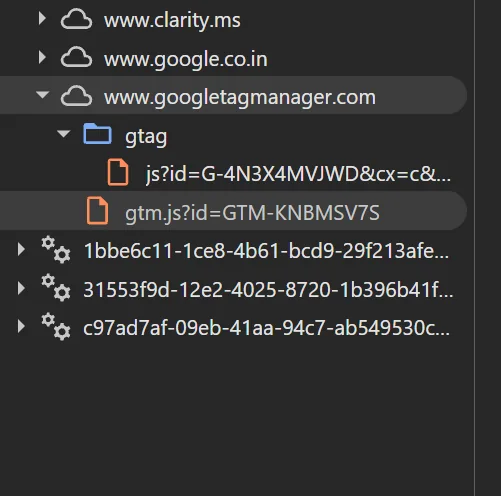
First, the website did the same work twice. Every Google tag inside GTM still downloaded its own copy of the Google tag’s file. Look at the screenshot below, taken from our demo jewelry store before we upgraded. The browser loads gtm.js for GTM, and then a second file, gtag/js?id=G-4N3X4MVJWD, for the GA4 tag inside GTM. Add Google Ads, and the page downloads one more.
Second, the settings lived in different places. By settings, I mean the choices that decide what a Google tag collects and how. A few examples from GA4:
- Which actions GA4 tracks on its own, without anyone building a tag for them (scrolls to the bottom of a page, clicks on links to other websites, file downloads, video plays, and so on).
- How long a visitor can be inactive before GA4 starts counting a new visit (30 minutes, unless you change it).
- Which visits come from your own team, so GA4 can leave them out of your reports.
- Which websites count as yours, so a visitor moving from your store to your payment page isn’t counted as a new visitor.
- Whether the tag can send details a customer typed in, such as an email address, in a protected form so Google Ads can match a purchase to the ad that led to it.
These settings didn’t live in GTM. GA4’s were in GA4 (Admin → Data streams → your stream → Configure tag settings), and Google Ads had its own. GTM only decided when the tags ran. So, the person managing GTM often couldn’t see the settings shaping the data, and a change in GA4 went live immediately, with no record of who made it or what it was before.
Some odd setups also worked only because of quirks in how the two products tolerated each other. Google has been closing those down since July 2026, and we will touch on one of them later.
The part most people don’t know: the Google tag was always a GTM setup
Here is the detail that explains the whole merger. We downloaded both files from our demo store, the GTM file and the Google tag’s file, and opened them side by side. They are built the same way. Both start with the same copyright line, and both contain the same kind of block:
var data = {
  "resource": {
    "version": "...",
    "macros": [...],      // variables
    "tags": [...],        // tags
    "predicates": [...],  // trigger conditions
    "rules": [...]        // which conditions run which tags
  },
  ...
This block is how GTM stores your tags, triggers, and variables once you submit. In other words, the Google tag file is also a GTM setup. The only difference is who built it. In the GTM file, the tags are the ones your team built. In the Google tag file, Google built them for you based on the settings attached to that ID. You will find tags in it with names like __ogt_auto_events, which handles Enhanced Measurement, and a series of tags starting with __ccd_ that prepare and send GA4’s data.
Simo Ahava, one of the best-known GTM practitioners, put it plainly in his write-up of the update. Any given Google tag “is essentially a wrapper for an underlying Google Tag Manager container”. So, for years, Google ran two products on the same engine, and many websites loaded that engine twice.
That brings us to what the merger actually changes.
What the merger actually changes
With that background, the change is simple to describe. Your GTM setup can now act as the Google tag itself. GTM has always called that set of rules and instructions a container, and from here on, we will use that word too, because Google’s own screens use it.
Destinations: Google’s tools as receivers
After the upgrade, GA4, Google Ads, and Floodlight become destinations of your container. A destination is simply a Google tool that receives data from the container, identified by its ID: a GA4 data stream (G-), a Google Ads account (AW-), or a Floodlight setup (DC-).
For each destination, GTM has a new tag type, named after the tool: Google Analytics, Google Ads and Google Floodlight. These replace the old “Google tag” type inside GTM, which Google now marks as legacy. The difference is where the work happens. The old Google tag type fetched a separate Google tag file for its ID, as we saw in the screenshot earlier. The new destination tags start tracking from inside GTM’s own file, so that extra download disappears.
Here is how the pieces map:
| Before the upgrade | After the upgrade |
|---|---|
| GTM, plus one Google tag file per Google tool | GTM’s file only |
| A “Google tag” inside GTM for each ID | A destination tag for each tool: Google Analytics, Google Ads or Google Floodlight |
| Settings stored in GA4 and Google Ads | Settings stored in a new Settings tab inside GTM, shared by all destinations |
One set of settings, inside GTM
The settings we described in the previous section (automatic tracking, session timeout, your own team’s visits, which websites count as yours, and customer details for Google Ads) now sit in a Settings tab in GTM. Every destination in the container uses them, so GA4 and Google Ads can no longer drift apart on, say, which domains count as yours.
A destination tag can still override a shared setting, but according to Simo Ahava’s walkthrough, only in the stricter direction. Say the container allows customer details to be sent. The Google Ads tag can switch that off for itself. If the container blocks it, the Google Ads tag can’t switch it back on. Keep that rule in mind, because our tests later found a case it doesn’t cover.
Settings now also follow GTM’s usual process. A settings change is tested in Preview, submitted, and saved in a version like any other change, so you can see who changed what, and go back if needed. That is a real improvement over changing settings in GA4, where a change went live at once with no history.
The upgrade is optional and guided
None of this happens on its own. Google’s announcement is explicit that nothing changes automatically. Once the option reaches your account, GTM shows a banner offering to optimize your container. Clicking it opens a short wizard that:
- Lists the Google tags in your container that you have access to, so you can choose which ones to convert into destination tags.
- Asks which settings the container should use, if your Google tags have different settings.
- Offers to give people who already have access to those GA4 and Google Ads accounts Read access to your container (on by default, and you can change it later in GTM’s Admin section).
- Shows the exact changes it will make (click Show details) before adding them to your container as changes you can test.
Nothing goes live until you test in Preview and submit. If something goes wrong after that, you can return to the version before the upgrade.
Conversion Linker: why it existed, and why you may not need it now
Let’s go back to Meera. Say she clicks a Google ad for the earrings. Google Ads adds a click ID to the address of the page she lands on, something like ?gclid=Cj0KCQ.... That ID is how Google Ads later knows that this purchase came from that ad click.
The problem is timing. The click ID is added to the address of the first page only. Meera browses a few product pages, maybe leaves and comes back two days later, and then buys. By then, the click ID is long gone from the address bar. Without it, Google Ads can’t connect the purchase to the ad, and the conversion goes unattributed.
That is the job Conversion Linker did. It is a GTM tag that reads the click ID from the address when Meera lands, and stores it in a small cookie* on your website (named _gcl_aw). In our tests, that cookie was set to last 90 days. When she buys, the Google Ads conversion tag reads the click ID from that cookie and sends it along with the purchase. In other words, Conversion Linker kept the link between the ad click and the sale alive until the sale happened.
After the upgrade, the destination tags take over that job, and Simo’s walkthrough lists Conversion Linker as legacy. We tested this on our demo store with a made-up click ID. With Conversion Linker running, opening the page with ?gclid=TEST123 created the cookie with the value GCL.1792732685.TEST123. Then we paused Conversion Linker, deleted the cookie, and opened the page again with ?gclid=TEST456. The cookie came back as GCL.1792733150.TEST456. So, on a single website, the upgraded container stored the click ID without Conversion Linker.
I would remove Conversion Linker after the upgrade, but only after some more testing. We haven’t tested what happens when a visitor moves between two of your websites (e.g., from your store to a separate checkout domain), or the newer click IDs Google Ads uses for some iPhone traffic (gbraid and wbraid). Test those first if they apply to you.
* A cookie is a small piece of text that a website asks the visitor’s browser to save on their device, such as a name and a value (here, the ad click ID). The browser keeps it for a set period and hands it back to the same website on later visits. That is how a website can remember something about a visitor from one page, or one day, to the next. A cookie your website saves belongs to your website, and other websites can’t read it.
GTM now opens inside GA4 and Google Ads
Once your container is linked to GA4 and Google Ads, it becomes visible from inside those tools. In GA4, go to Admin → Data streams → your stream → Configure tag settings. You will now see every Google tag and GTM container connected to that stream. Choose the GTM container, and the full GTM interface opens inside GA4, showing the container and its destinations. Google Ads has a similar entry point in its Data Manager section.
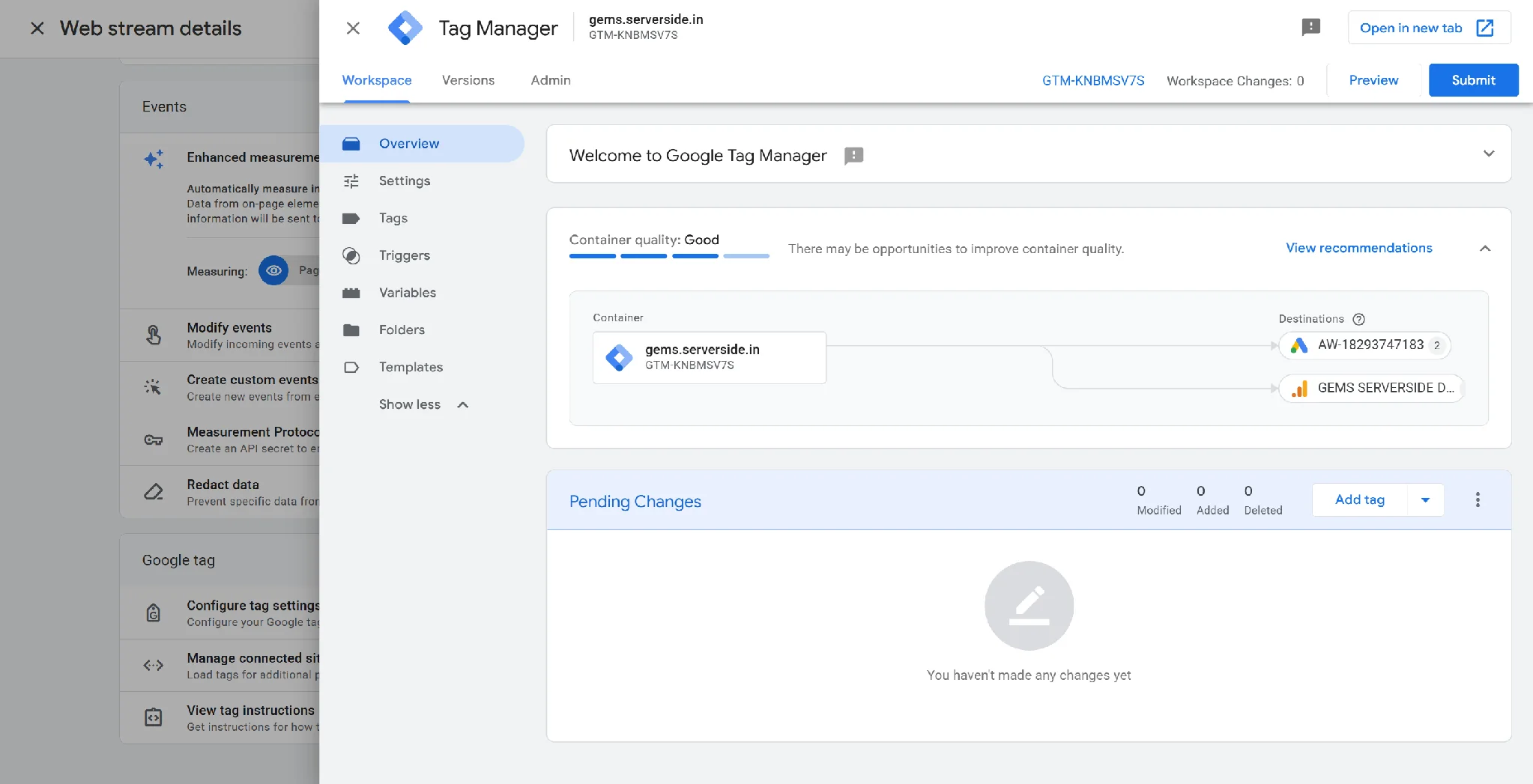
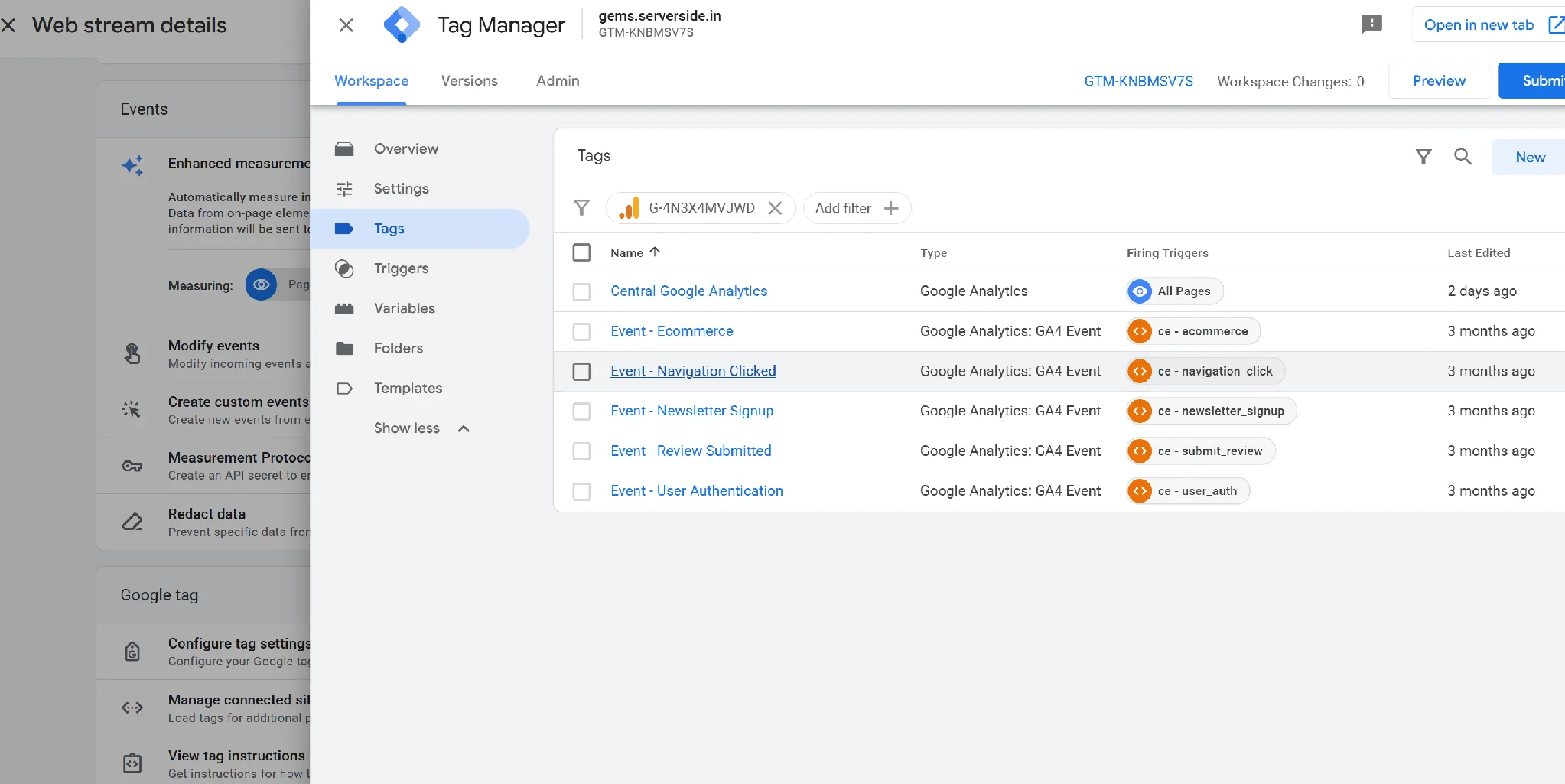
Google’s announcement also says that websites using only the pasted Google tag, with no GTM, will get GTM’s interface, Preview, and version history for that tag. We checked this in our account. The standalone Google tag for our GA4 stream still opened the usual GA4 tag settings, with no GTM interface, Preview, or versions anywhere. So, treat this part as announced, not yet available.
So, the merger changes three things for a GTM user: one file instead of several, one set of settings in GTM instead of scattered across tools, and GTM visible from inside GA4 and Google Ads. Why would Google go to this trouble? That is the next question.
What we tested, and what we found
Reading release notes only gets you so far. So, we upgraded a real GTM container and spent hours checking what actually changes on the website, in GTM, in Google Ads, and in GA4. This section explains how we tested so that you can repeat it, and then what we found.
Fair warning: this section gets technical in places. I will soon upload a video that walks through these tests on screen, on my YouTube channel: youtube.com/@funnelysis.
Our setup
Our test site is a demo jewelry store at gems.serverside.in. Its GTM container (GTM-KNBMSV7S) sends data to one GA4 data stream (G-4N3X4MVJWD) and one Google Ads account (AW-18293747183). It also runs Amplitude, Mixpanel, Microsoft Clarity, and an A/B testing tool, so it looks like a typical marketing setup, not a clean lab. We ran the upgrade wizard on this container, tested the changes in Preview, and submitted them.
The test page
Most real websites have more than GTM on them. Some still carry the pasted Google tag from years ago, and some run plugins or other scripts that send their own setup instructions to Google. To see how GTM behaves in each case, we built a small test page that can load different combinations on demand. You can open it running on our demo store at gems.serverside.in/gtag-test, and save it from your browser (Ctrl+S in Chrome) to use on your own website.
The page reads three settings from its own address: your GTM ID, a GA4 or Google Ads ID, and a mode. For example:
https://yourwebsite.com/gtm-test.html?mode=snippet>m=GTM-XXXXXXX&ga=G-XXXXXXXXXXThe mode decides what the page loads:
| Mode | What the page loads | What it imitates |
|---|---|---|
| none | Only GTM | A website that uses only GTM, the most common setup |
| snippet | The pasted Google tag first, then GTM | A website that still has an old Google tag above GTM |
| after | GTM first, then the pasted Google tag | The same, in the opposite order |
| hybrid | GTM plus a loose setup instruction, without Google’s file | The odd setup Google calls unsupported |
| late | Only GTM, plus a button that sends a setup instruction later | A plugin or another script sending its own instruction |
The page also lists every entry written into the dataLayer, live, as it happens, and highlights the setup instructions. So, you can see what the website wrote, and then compare it with what GTM did about it in Preview.
The test tags
In a separate GTM workspace (so nothing reached real visitors), we added two tags that fire on every event GTM handles. Both use a Custom Event trigger with the event name .* and “Use regex matching” ticked.
That .* needs a word of explanation. Regex (short for regular expression) is a pattern-matching language for text. In it, the dot means “any single character”, and the star means “the previous thing, repeated any number of times, including zero”. Together, .* means “any characters, any number of them”, so it matches every event name there is, from purchase to gtm.js. That is why people call it a catch-all.
- A Custom HTML tag that writes the name of each event into the browser’s console:
<script>console.log('HTML fired on', {{Event}});</script>. ({{Event}}is GTM’s built-in variable holding the current event name. Switch it on under Variables if it isn’t already.) - A Custom Image tag that requests a tiny image from our own domain, with the event name in its address. This is a different tag type, and we wanted to know whether tag type makes a difference. It does, as you will see.
How we ran each test
Each test followed the same routine:
- Open GTM’s Preview mode and enter the test page’s address with the mode we wanted.
- Read three things side by side: the Preview timeline (which events GTM handled and which tags fired), the browser console (which events our Custom HTML tag ran on), and the list on the test page (what the website actually wrote into the dataLayer).
- Check what was sent to Google. Preview now has a Hits Sent tab, which lists the data GTM sent to its destinations for each event. If the page also carries a pasted Google tag, Tag Assistant shows it as a separate chip at the top, next to your container. Click that chip to see what the pasted tag sent. For a final check, open the browser’s developer tools (F12 in Chrome), go to the Network tab, and filter by
collect. GA4 often bundles several events into one request, so open the Payload of each request to see the event names inside. - For settings tests, change a setting, submit, and then open the container’s file directly in the browser (
https://www.googletagmanager.com/gtm.js?id=GTM-XXXXXXX) and search for the setting’s name to see what was actually published. - Change one thing, and repeat.
A word of caution: Preview sends real data to GA4 and Google Ads. Use a test GA4 property where you can, and if you test a purchase, remove the test conversion from Google Ads afterward.
Here is what we found, grouped by the question each finding answers.
Does the upgrade remove the extra file?
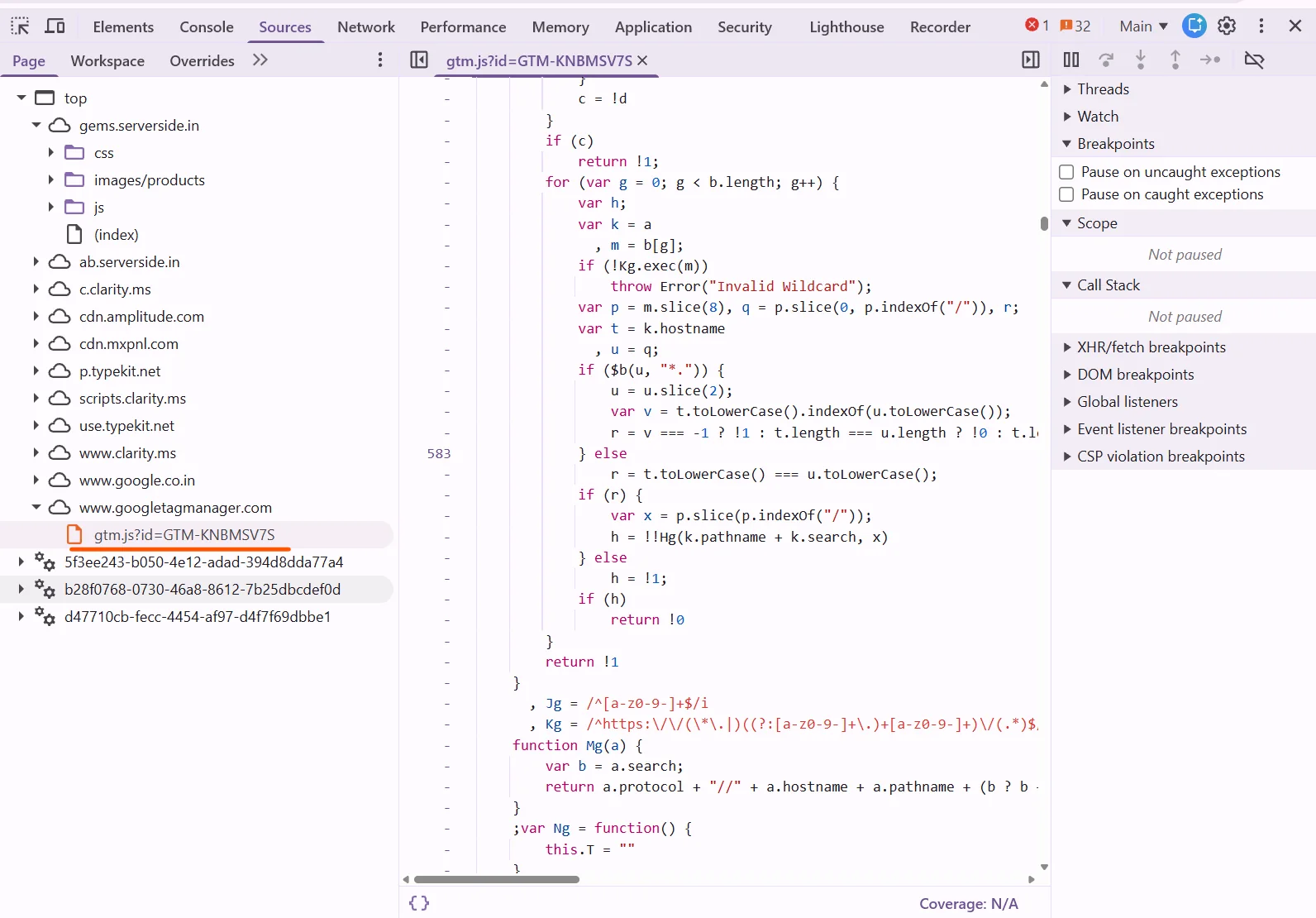
Yes. In the published container file, no tag asks for the separate Google tag file anymore. GA4 is started by the new Google Analytics destination tag (ours is called “Central Google Analytics”), and the page loads only GTM’s file.
What does Preview look like after the upgrade?
The very first Preview run after submitting looked alarming. About twenty tags we had never created had fired on the Initialization event, with names such as “_Product-Owned Activity Tag 59” and “_Tagging Activity Tag 56”, all marked “Unknown Tag Type”. The Variables tab also showed new variables, such as _foreign_tld_macro (value: “google.co.in”) and _is_china_vip_region_macro.
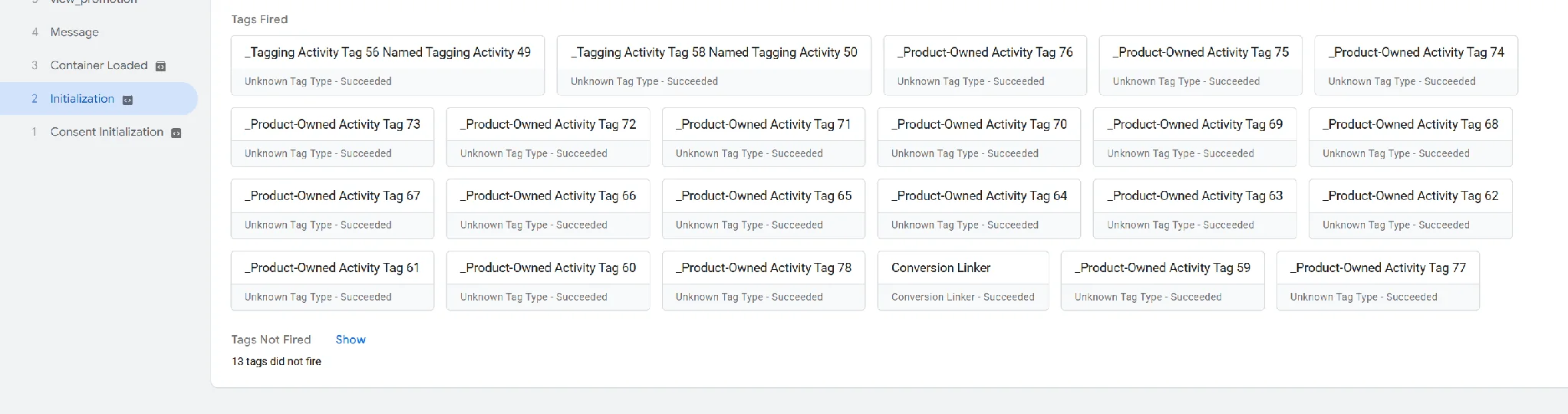
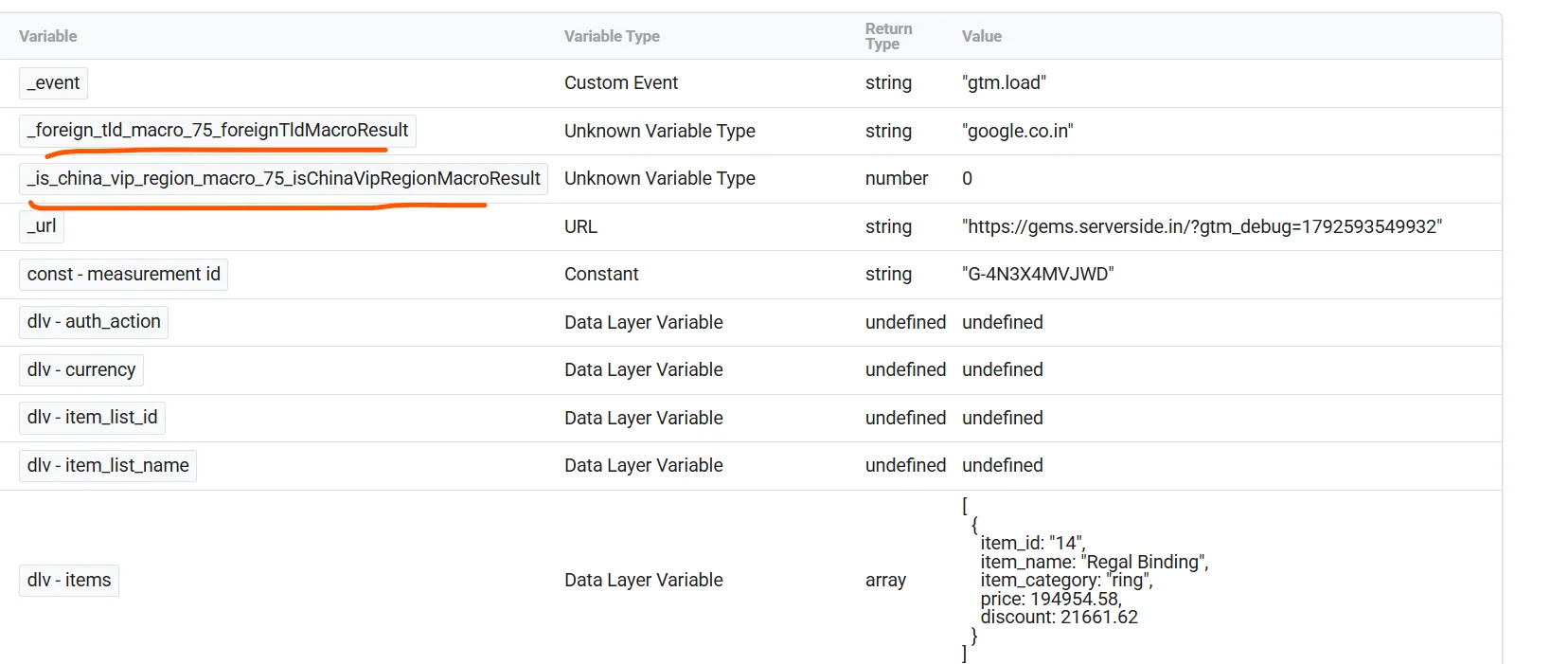
So, we opened the published container file and matched the tag numbers. Every one of them was Google’s own code, the same kind of tags we had found inside the Google tag’s file before the upgrade:
| Tag in Preview | What it is | Belongs to |
|---|---|---|
| _Tagging Activity Tag 56 | Automatic event detection (__ogt_auto_events) | Shared settings |
| _Tagging Activity Tag 58 | Customer details for Google Ads (__ogt_1p_data_v2) | Shared settings |
| _Product-Owned Activity Tags 59 to 76 | GA4’s processing steps (__ccd_ tags): page views, scrolls, file downloads, forms, outbound clicks, site search, video, and so on | GA4 |
| _Product-Owned Activity Tags 77 and 78 | Google Ads’ processing steps (__ccd_ads_first, __ccd_ads_last) | Google Ads |
The two variables belong to GA4’s product settings.
I saw these unknown tags only in the first run, and I couldn’t reproduce them. In every later run, Preview showed two “Tag Settings” cards instead (Manage automatic event detection, and Allow user-provided data capabilities), and clicking a card shows exactly which settings were applied. I guess that Google adjusted how Preview displays these tags, but I can’t confirm that.
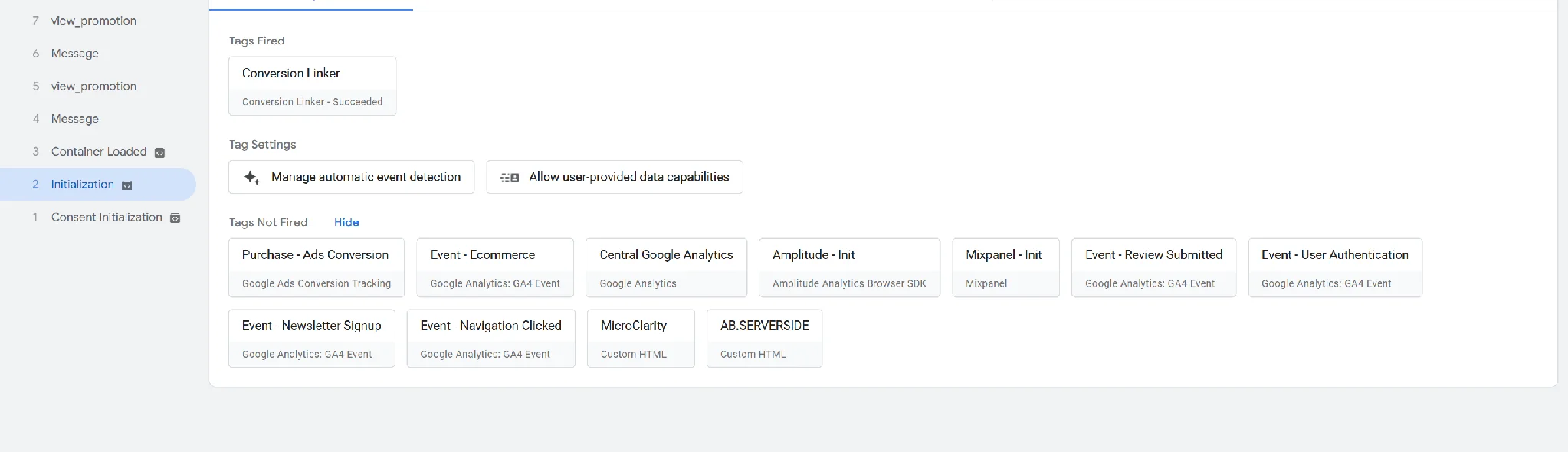
So, the work the Google tag’s file used to do out of sight now happens inside your container. If you do see a list of unknown tags in Preview, nothing is broken, and there is nothing to delete.
Where do the settings live now, and which one wins?
This is the finding I would want every GTM admin to know before upgrading.
After the upgrade, a GA4 data stream has two sets of settings: the container’s Settings tab, and the Google tag’s own settings, which still exist in GA4. Google knows this. Open the stream’s tag settings in GA4 after the upgrade, and it lists both, with a warning: “This destination is connected to multiple Google tags or Google Tag Manager containers. Conflicting settings may cause data discrepancies.”
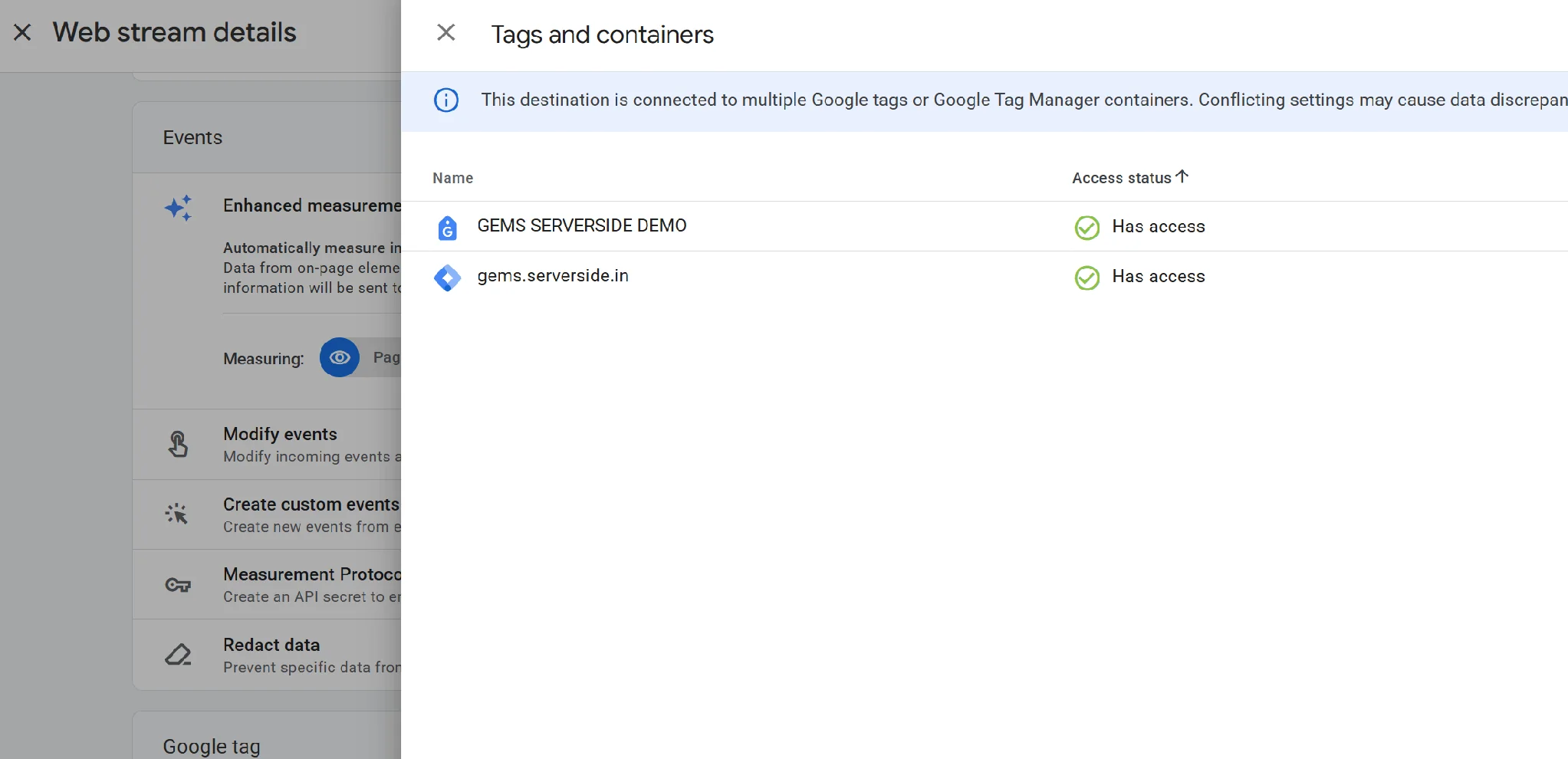
So, we tested what happens when they disagree, in both directions.
First, we switched off Scrolls in the container’s automatic event detection, submitted, and ran the test page twice: once with GTM only, and once with the pasted Google tag for the same GA4 ID as well.
| GTM only | GTM plus a pasted Google tag | |
|---|---|---|
| Scrolls in the container file | Off ("vtp_enableScroll": false) | Off |
| Scrolls in the pasted Google tag’s file | Not loaded | On ("vtp_enableScroll": true) |
| Scrolls in GA4’s Enhanced Measurement screen | Still on | Still on |
| Google tags found by Tag Assistant | 1 | 2 |
| Scroll events when we scrolled to the bottom | None | One, sent by the pasted Google tag |
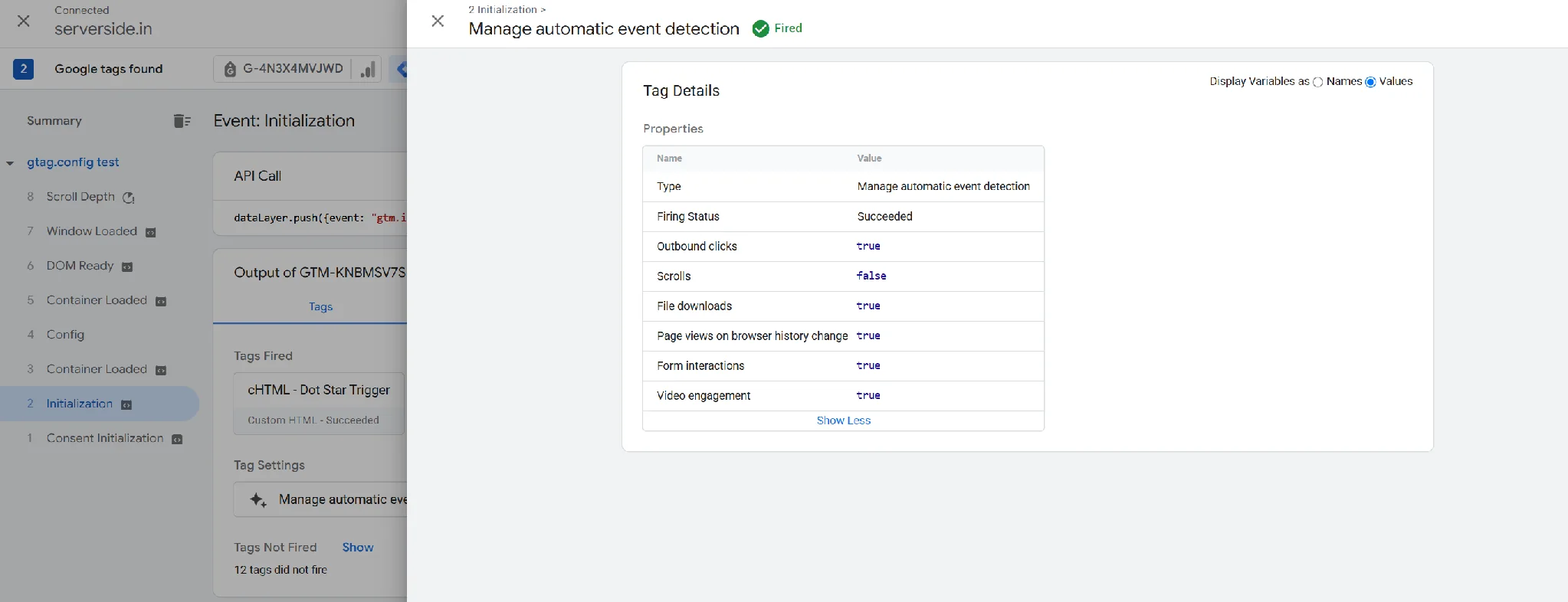
The left column shows the container’s setting working: switch Scrolls off in GTM, and the container stops sending scroll events. The right column shows its limit. The pasted Google tag kept its GA4 setting and kept sending scroll events, and GA4’s Enhanced Measurement screen never reflected the change in GTM. In other words, a setting changed in GTM applies only to what GTM sends.
Then we tried the reverse. We left File downloads and Outbound clicks on in the container, and switched them off in GA4’s Enhanced Measurement settings. The container file still said they were on ("vtp_enableDownload": true). Yet clicking a PDF link produced no file download event at all: the request to GA4 carried only our ecommerce events, and our catch-all test tag never saw a download event. Outbound clicks behaved the same way. So, the GA4 setting still applies, even though the container’s own code says otherwise.
Put together, the rule is this:
| Event | Container setting | GA4 setting | Result |
|---|---|---|---|
| Scroll | Off | On | No scroll event from the container |
| File download | On | Off | No file download event |
| Outbound click | On | Off | No outbound click event |
An automatic event fires only when both the container and GA4 allow it. Either side can switch it off, and neither can switch it on alone. This contradicts the idea that the container’s settings have the final say (as Simo Ahava’s walkthrough puts it), and neither screen tells you about the other.
Here is how that plays out in practice. Say Priya manages GTM for an online store and runs the upgrade in November. In January, the marketing team asks her to start tracking downloads of a new brochure. She checks the container’s Settings tab, sees File downloads is on, and moves on. A month later, the report shows zero downloads. GTM says downloads are on, Preview shows nothing wrong, and the container file says true. Priya doesn’t know that someone on the analytics team switched downloads off in GA4’s Enhanced Measurement screen two years ago, and she has no reason to open that screen because the upgrade told her settings now live in GTM. So, after the upgrade, a missing automatic event means checking two screens, not one.
Jokes apart, I think the new structure is weak here. All tools have tag settings, the container now has its own, a destination may or may not be able to override them, and GA4 can still switch things off from outside. More settings signal a weak underlying structure. It works, but it asks admins to remember rules the interface doesn’t show.
What happens to an old Google tag still pasted on the page?
Many websites still carry the pasted Google tag from years ago, sitting next to GTM. We tested three things about it.
It shows up as a second Google tag. With the snippet mode, Tag Assistant reported “2 Google tags found”, and the Preview timeline showed two “Container Loaded” entries. The second belongs to the pasted Google tag, and GTM says so itself: “No tags were evaluated in this container. Other containers on this page may have taken action.”
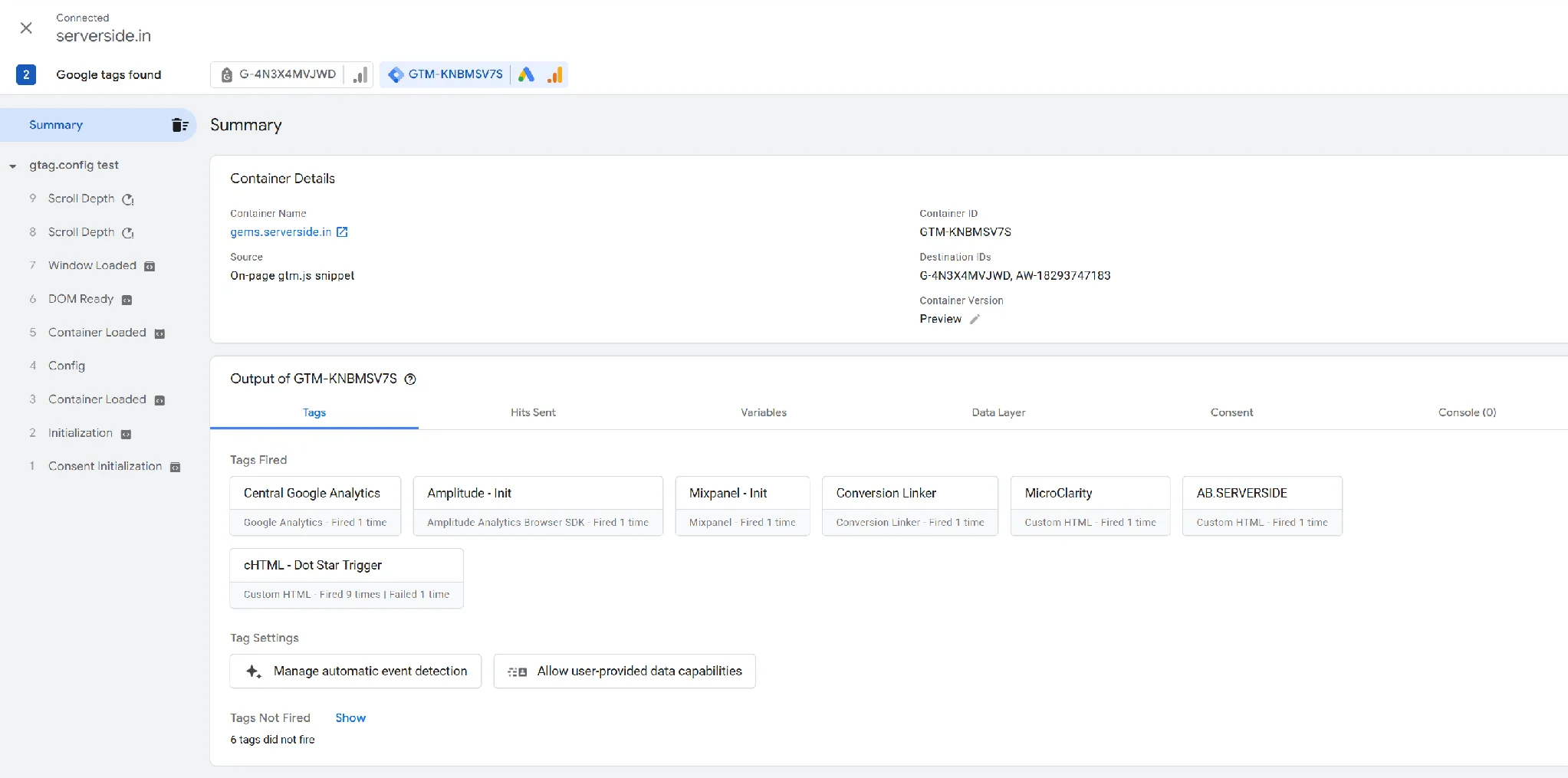
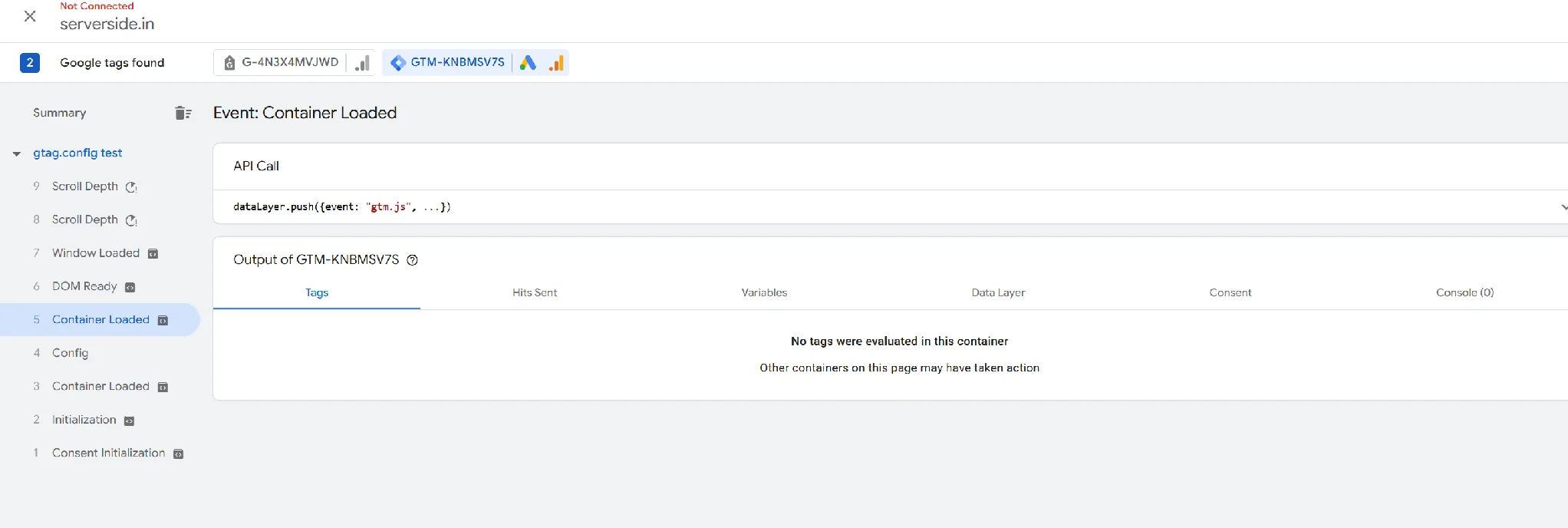
Its settings can override the container’s. The new Google Analytics destination tag has a checkbox called “Ignore duplicate instances of on-page configuration”. In our upgraded container, it was ticked. We set the pasted Google tag to send a page view for the same GA4 ID. With the box ticked, GA4 received one page view, but it came from the pasted tag (we could tell, because it carried a label that only existed in the pasted tag’s setup). When we set the pasted tag not to send a page view, the container sent it instead. Either way, there was exactly one page view, but the pasted tag’s settings won whenever it was there.
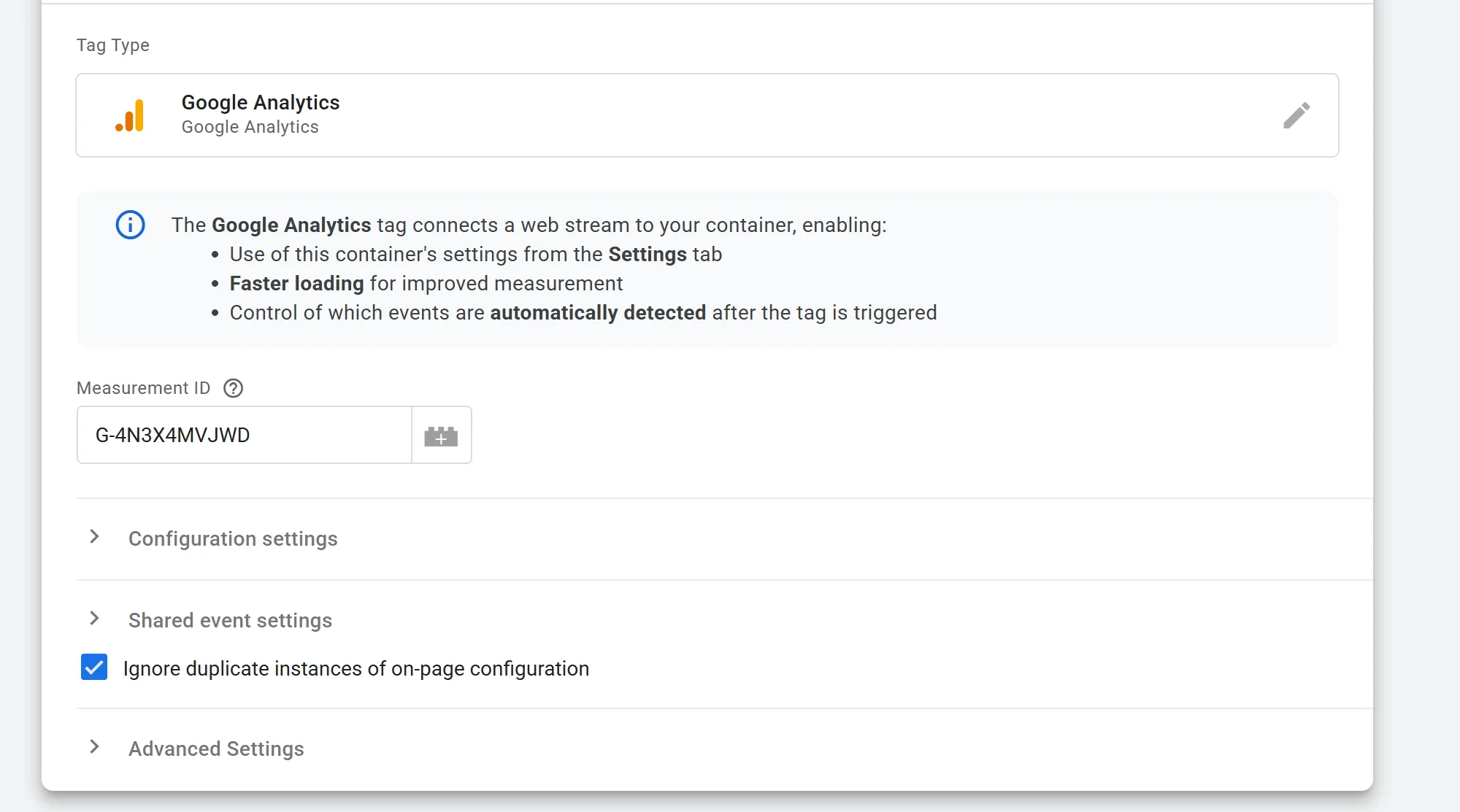
Without that checkbox, page views double. With the box unticked, GA4 received two page views for every page load.
So, a leftover Google tag either overrides your container’s settings or counts every page view twice, depending on one checkbox. The fix is the same in both cases: remove pasted Google tags for any ID that is now a destination in your container.
Look at how much an admin now has to keep in their head to get one page view right: a checkbox on the destination tag, settings in the container, settings in GA4, and whatever is still pasted on the website. Each new setting is meant to fix a problem, but together they are making the experience more confusing, not less. Can there be a better way? I think there has to be. One place that shows every Google tag on the website, every setting that applies to it, and which one wins, would remove most of this guesswork.
How does GTM handle the setup instruction now?
This is the October 8 change in practice. Remember the gtag('config') line in the pasted Google tag, and that it writes into the dataLayer? GTM now treats that instruction as an event of its own, called gtag.config.
We found three things:
- On a GTM-only website, nothing changes. In
nonemode, no such event appeared in any run. If nothing on your website sends a setup instruction, this part of the update doesn’t touch you. - Any script can trigger it, not only a pasted Google tag. In
latemode, pressing the button sent a setup instruction a few seconds after the page loaded, the way a plugin might, and GTM handled it as agtag.configevent like any other. - GTM no longer waits for it. In
snippetmode, the setup instruction was written into the dataLayer before GTM even loaded. Yet GTM ran its own start-up events (Consent Initialization, Initialization, and Container Loaded) first and handled the setup instruction afterward.
In Preview, the event shows up as “Config”. Its Data Layer tab shows what it carries: the event name gtag.config, the ID it was meant for (configContainerId), and the settings sent with it (configParameters).
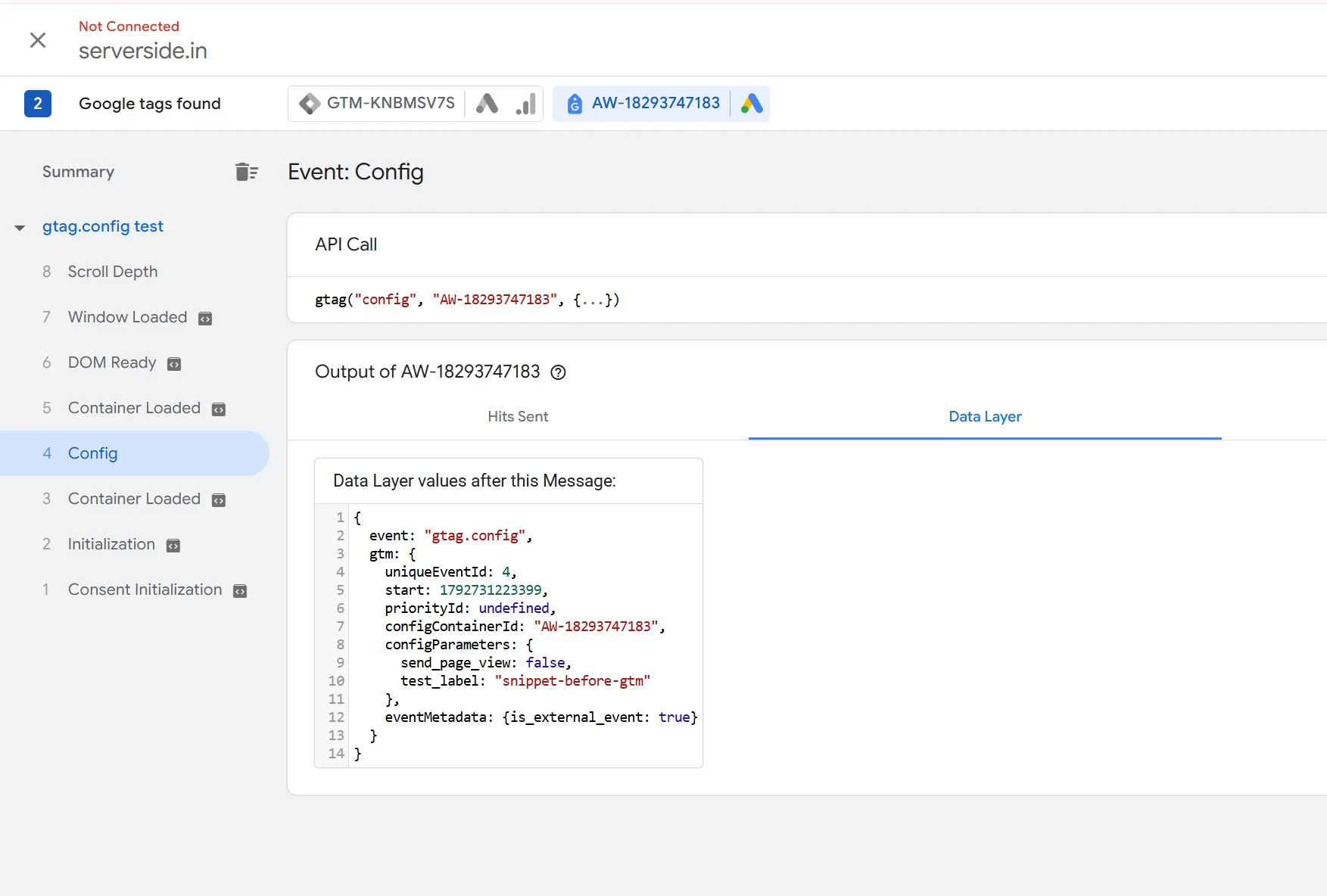
Two traps to watch for while testing this. First, the list of entries on the page (or dataLayer in the console) shows the setup instruction as written by the website, not as an event named gtag.config. The event name exists only inside GTM, so look for it in Preview. Second, the API Call panel at the top of a Config entry changes with the Google tag chip you select at the top of Tag Assistant. With your container selected, it shows your container’s ID instead of the ID in the instructions. The Data Layer tab shows the real one.
Will catch-all triggers misfire?
Only if you use them. A catch-all trigger is a Custom Event trigger with the event name .* and regex matching on, the same as our test trigger. People use it to log every event or to forward every event to another tool. I see it in barely 2 to 3% of the client accounts I work on, sometimes on the server side. If you don’t use one, skip this part.
If you do, two kinds of new events now reach that trigger.
The first is gtag.config, and what happens depends on the tag type. Our Custom HTML tag matched the trigger but showed “Failed” and never ran its code. We checked the container file to find out why: Custom HTML tags refuse to run on a gtag.config event. Our Custom Image tag on the same trigger fired normally.
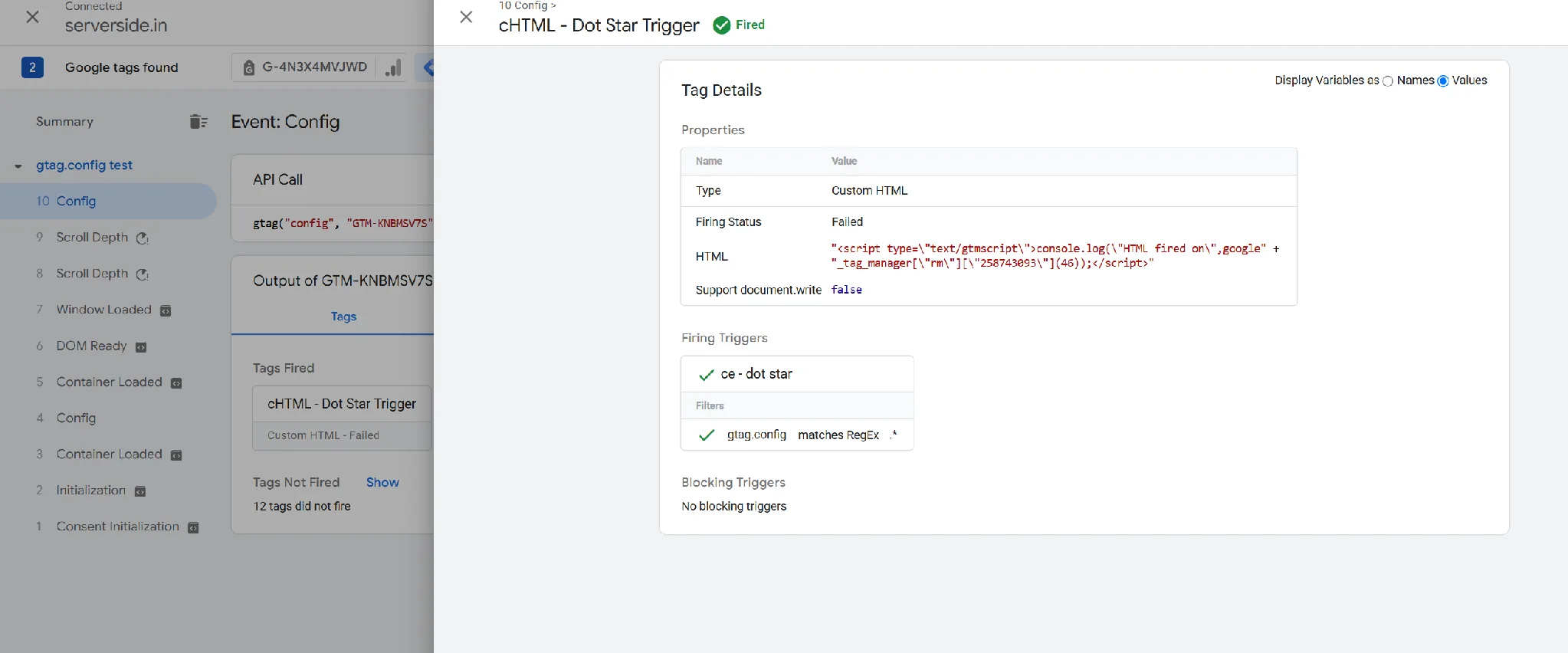
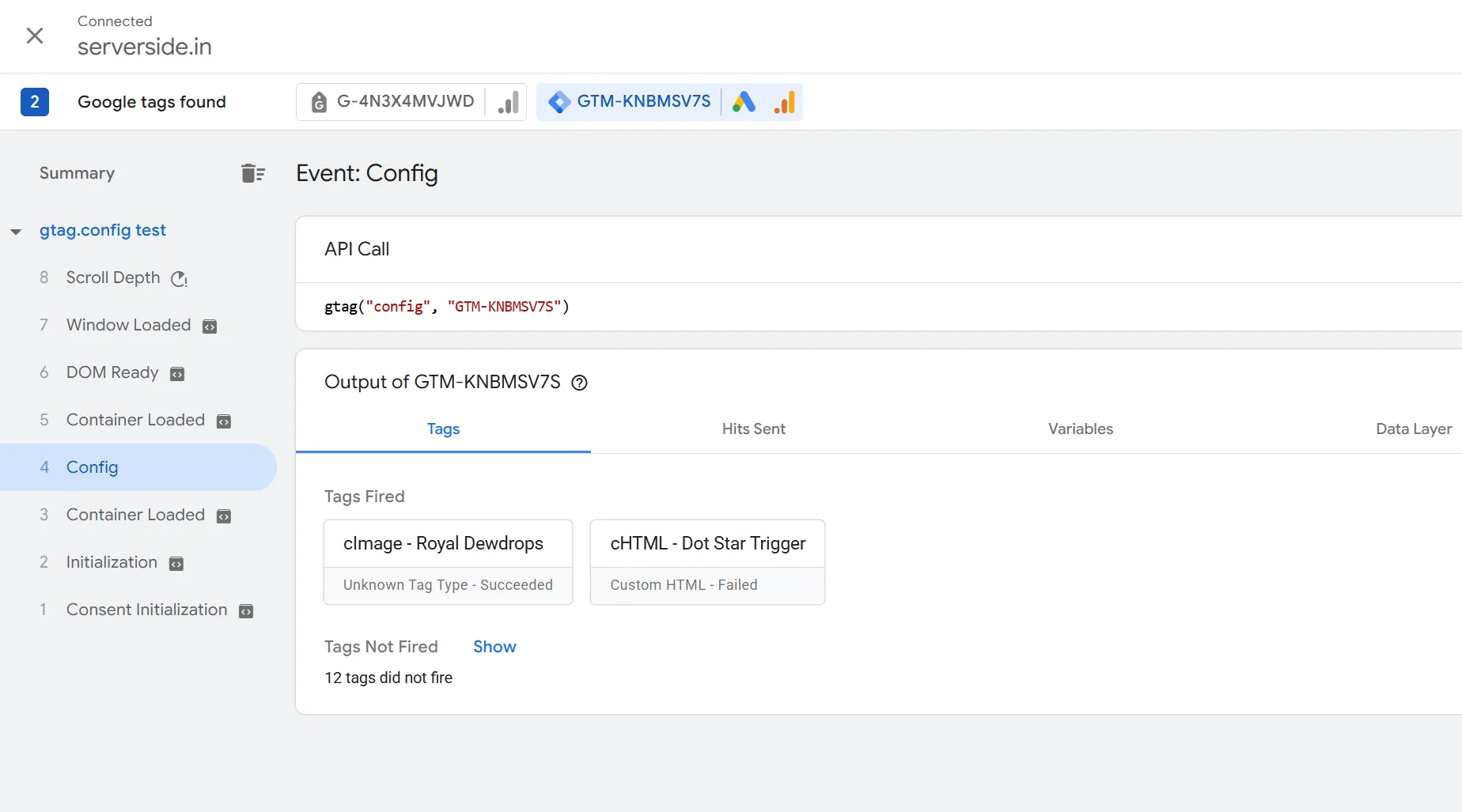
So, Custom HTML tags are protected, but template tags (including the gallery templates for Meta, LinkedIn, and TikTok) and image tags are not. That is narrower than the release note suggests, and narrower than some write-ups claimed.
The second kind comes from the upgrade itself, and nobody seems to have written about it. Because GA4’s automatic events now run inside your container, they pass through your triggers. On the GTM-only page, with no scroll trigger of our own, our catch-all Custom HTML tag fired on gtm.scrollDepth and then on scroll. Neither appears in the dataLayer list on the page, and scroll doesn’t even get its own entry in Preview, yet the trigger matched, and the tag ran. Custom HTML has no protection here.
The fix for both is the same, and it is good practice anyway: replace .* with a list of the event names you actually use, for example ^(purchase|generate_lead|newsletter_signup)$. Excluding gtag.config alone is no longer enough.
Does Google Ads behave differently?
Not much. Our purchase conversion still fired once on the order confirmation page, and the Hits Sent tab showed it going out alongside the GA4 page view. A setup instruction for the Google Ads ID produced a gtag.config event, exactly as GA4’s did. Google Ads added no new events that catch-all triggers could see. (We covered Conversion Linker in the previous section.)
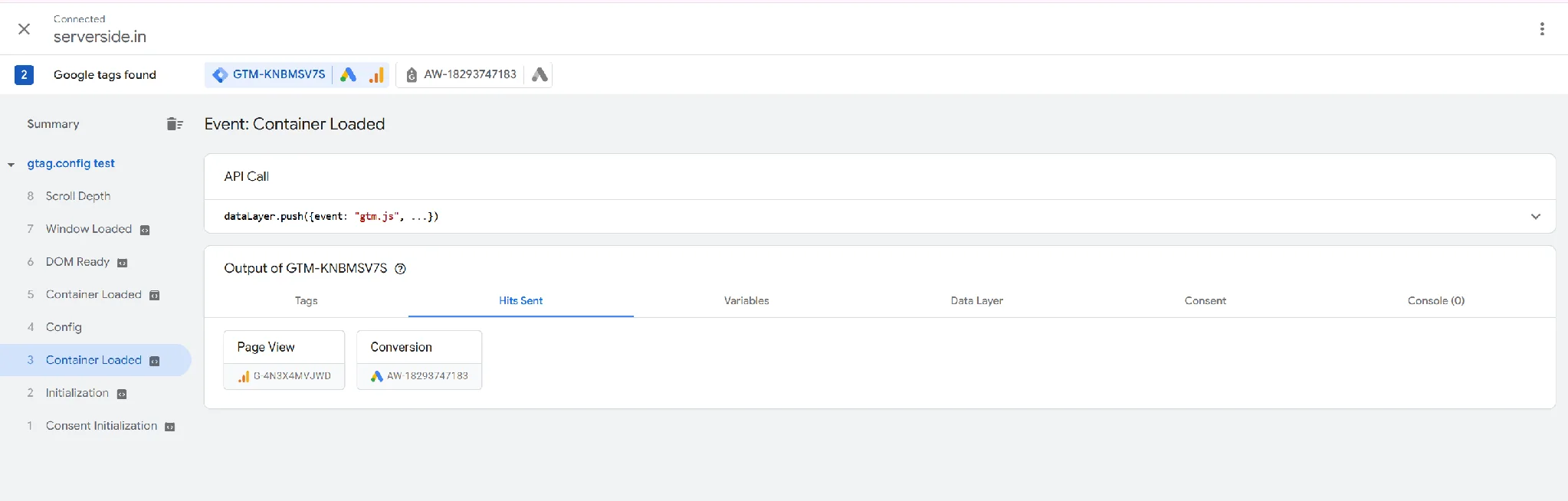
One thing we couldn’t explain: when the page also carried a pasted Google tag for the Google Ads ID, switching to that tag’s chip in Tag Assistant showed that it sent a Google Ads page view of its own, even though its setup said not to. It is one more reason to remove pasted Google tags after upgrading.
What we haven’t tested yet
As we move ahead and test these, we will keep updating this section:
- Whether other automatic events (outbound clicks, file downloads, form interactions, site search and video) reach catch-all triggers the way scrolls did.
- Whether Google Ads settings changed inside Google Ads reach the container, and whether customer details are still sent with conversions after the upgrade.
- Whether the upgrade keeps a server-side setup configured on the old Google tag (our demo container has no server-side setup).
- How much faster pages actually load after the upgrade, measured on a real website.
- Whether Google rolls these changes out to every container at the same time, Google’s help pages still describe parts of it as coming “soon”.
Why Google did it, and why now
We have seen what changed and what it does on a real website. The obvious question is why Google went to this trouble now, for a change that most businesses won’t even notice, or want to notice, until something breaks.
Two products, one engine, double the upkeep
The simplest answer is the one we found in the files. The Google tag and GTM shared the same engine underneath, but Google treated them as two products, with two sets of settings, two ways of loading, and two sets of rules for how they interact. Every time a website unexpectedly mixed them, Google had to decide which product’s rules applied, and patch the gaps.
You can see the patches in Google’s own release notes this year. On July 9, 2026, Google changed how GTM behaves when it is loaded with a GA4 or Google Ads ID instead of a GTM ID: from then on, the ID decides what is allowed to run (a GTM ID can run any tag, while a G- or AW- ID can run only Google’s own tags). On October 8, it stopped GTM from waiting for a setup instruction from the page, which we tested in the previous section. Each change closed one more way the two products could be mixed. Merging them removes the reason those patches were needed.
Google’s own explanation is shorter. Its announcement says the changes are “designed to streamline your measurement setup, improve performance and management, and provide a more unified experience across Google’s tagging products”. The same announcement says that new installation code will no longer include the gtag('config') setup instruction at all, and that a new initialization trigger in GTM can be set to wait for that instruction, for older setups that still need it. So, the October 8 change wasn’t a one-off. It brought existing containers in line with where Google had already said it was going.
The bigger picture: tracking setup is moving into Google’s own tools
The merger also fits a pattern that runs across Google’s products this year:
- As of June 15, 2026, Consent Mode’s
ad_storagesetting became the only control over whether GA4 collects data that reaches a linked Google Ads account. Before, a separate GA4 setting (Google Signals) could also block it. - From May 2026, practitioners started seeing a “Manage” option in Google Ads’ Data Manager section that opens GTM controls without leaving Google Ads.
- Google launched visual tagging in beta: a point-and-click way to set up purchase conversions for Google Ads by selecting elements on your website, then writing the tags, triggers, and variables into GTM for you. I walked through it in this video.
- Campaign Manager 360 moved its Google tag page into a new Data Manager section.
Each change moves tracking setup closer to where advertisers already work and reduces the number of separate switches between a website and Google’s ad and analytics tools. Google is open about the goal. Its Google Tag Manager page, which covers the 2026 upgrade, promises “fast, accurate measurement” and “highly reliable conversion measurement”. As far back as March 2025, when GTM started loading a Google tag automatically for containers with Google Ads tags, Google said the change “improves the reliability of your Google Ads tracking” (release notes). Better conversion data means better-performing campaigns, and for Google, that is reason enough to invest in this.
My reading is that Google is heading towards a complete unification of its data collection and tracking under one roof. It is still unpolished. GTM opening inside GA4 and Google Ads feels added on rather than designed in, and the settings we tested show that the two worlds haven’t fully joined yet. I expect something better to follow, possibly a single tool that manages all of Google’s tracking from one place.
Why now
Honestly, this was long overdue, and it could have happened any time. For years, how Google’s tracking was put together created discrepancies that practitioners learned to live with: GA4 and Google Ads disagreeing on the same conversions, settings for one ID spread across GA4, Google Ads, and GTM, and the same Google code loading more than once on a page. The structure was spread out, and fixing problems in it meant knowing where each piece lived.
As for why it arrived when it did, the plan wasn’t sudden. Google published it on May 20, 2026, the same day as its Google Marketing Live event, and refreshed the same announcement page on August 20, with no new features but a change in wording from “We’ll soon introduce” to “We are introducing”. The two changes that make it real arrived in October: the setup instruction change on October 8, and the upgrade itself (Google calls it optimizing your container) on October 12, both in the release notes. Practitioners who had read the May announcement as a roadmap now had a banner in their GTM account.
Not everyone reads its importance the same way. Simo Ahava calls it “the biggest change in Google Tag Manager in over a decade”, mainly for the page speed it saves by not loading a separate Google file for each tool. I agree it is a big change in how Google builds tags. For most businesses I work with, though, the day-to-day difference is small, which is what the next section addresses.
Is it worth it?
So, is this a big deal? It depends on where you sit, but there are real benefits here, and as Google builds on this foundation, it could make a much bigger difference than it does today.
For businesses using GTM, the gains are practical. The extra Google file for each tool is gone, so pages have less to download before tracking starts. Settings for GA4 and Google Ads sit in one place, so they can’t quietly drift apart. Every settings change is now tested, recorded, and reversible, like any other GTM change, so fewer surprises from someone changing a GA4 setting without telling anyone. Preview shows exactly what was sent to Google and which settings applied, so debugging takes less guesswork. And because GA4 and Google Ads now point to the container that actually runs their tags, the people who work in those tools can finally see how tracking is set up, instead of asking the GTM person every time.
For Google, the gains are architectural. Two products that were the same engine underneath have been folded into one, which means one set of rules to maintain instead of two, and an end to a whole class of odd installations that Google kept having to patch. It also gives Google a single foundation to build on, whether that is visual tagging, tighter links with Google Ads, or the more reliable conversion measurement it has been promising.
However, the upgrade doesn’t remove the work for the people who run containers. I still have to check the settings of every Google tag, and the upgrade adds a second place to check instead of replacing the first. Our tests showed why: GA4 can still switch an event off behind the container’s back, a pasted Google tag can still override the container, and a checkbox decides whether page views are counted once or twice. None of that shows up as a problem on any screen. It shows up weeks later, as a number in a report that nobody can explain.
So, who should care, and how much?
People who manage GTM should care most, because the upgrade can change what GA4 records, and they’ll be the ones asked why. Complex setups gain the most: a container sending data to several GA4 streams, Google Ads accounts, and Floodlight, where shared settings and a single file make a real difference to both page speed and upkeep.
For everyone else, adopting the new setup is a hygiene step. It won’t change your reports overnight, but future changes to Google’s tags will be built on top of it. Containers that skip it now risk missing those changes or facing a pile of them later.
Business and website owners will mostly not know about this, or need to. The change is deeply technical, and if it is done well, nothing they look at should change. They only need to ask whoever manages their GTM whether the upgrade is done and whether it was tested.
That brings us to the practical part: how to do it safely.
What to do next
My advice: do the upgrade, but do it the way you would roll out any important tracking change, with thorough testing before anything goes live. Here is the order I would follow.
Before you upgrade
- Find every Google tag on your website. Open a few key pages (home, a product page, checkout, the thank-you page) and view the page source (Ctrl+U in Chrome). Search for
gtag/jsandgtag('config'. Each one you find is a pasted Google tag. Note its ID, and whether the same ID is also set up inside GTM. Plugins and website builders often add these without anyone remembering, so check the pages they control too. - Write down your current settings in GA4 and Google Ads. In GA4, go to Admin → Data streams → your stream, and note what Enhanced Measurement tracks. Then open Configure tag settings and note the rest (session timeout, internal traffic, which domains count as yours, and so on). Do the same for each Google Ads ID. You will need this list to check the upgrade, and you will need it again later, because these settings still apply after the upgrade.
- Note your current GTM version. In GTM, go to Versions and note the number of the version that is live. If anything goes wrong, this is the version you go back to.
- Check for catch-all triggers. In GTM, open Triggers and look for any Custom Event trigger whose event name is
.*with regex matching on. If you find one, replace it with a list of the event names you actually use before you upgrade, so new events don’t reach the tags behind it.
During the upgrade
- Run the upgrade wizard in a fresh workspace. Click the upgrade banner in GTM, choose the Google tags to convert, and pick the settings the container should use. Before you add anything, click Show details and read the list of changes: which Google tags become destination tags, and which settings will be applied.
- Compare the container’s new Settings tab with your notes from step 2. Make sure the two match, especially Enhanced Measurement. Remember the rule from our tests: an automatic event fires only when both GTM and GA4 allow it.
- Check the duplicate setting on each Google Analytics destination tag. The checkbox “Ignore duplicate instances of on-page configuration” should already be ticked (it was in ours). Tick it only if it isn’t. If any pasted Google tags are still on your website, this setting stops them from doubling your page views.
Test before you submit
- Test in Preview. Expect Google’s own tags or Tag Settings cards to appear under Initialization. Then check that your own tags still fire where they did before, on the same events.
- Check what is actually sent. Use the Hits Sent tab in Preview for each important event (page view, key conversions, purchase). If a pasted Google tag is on the page, click its chip at the top of Tag Assistant to see what it sent separately.
- Check GA4 itself. Open GA4’s DebugView (Admin → Data display → DebugView) while you browse in Preview, and confirm that page views, automatic events, and conversions arrive once each, not twice and not zero times.
After you submit
- Remove pasted Google tags for any ID that is now a destination in GTM, then test again. Until they are gone, their settings can override your container’s.
- Keep Conversion Linker for now. In our test, the upgraded container stored ad click IDs on its own, but test it on your own setup first, especially if visitors move between two of your websites or arrive from iPhone campaigns, before you remove it.
- Tell the people who manage GA4 and Google Ads. Settings now live in two places. Anyone who changes Enhanced Measurement or tag settings in GA4 should know that GTM has its own copy, and that switching something off in either place switches it off for good.
- Watch your reports for two weeks. Compare page views, conversions, and automatic events with the two weeks before the upgrade. A sudden jump or drop is your cue to go back to the version you noted in step 3 and investigate.
A video walkthrough of these tests is coming shortly on my YouTube channel. It isn’t ready yet, so subscribe if you want to catch it when it goes live. And if you run the test page on your own container and find something different from what we did, I would like to hear about it, because this is still changing, and we will keep this post updated as it does.
Sources
- Release notes for Google Tag Manager, Google Tag Manager Help (entries for September 5, 2023, March 10, 2025, July 9, 2026, October 8, 2026, and October 12, 2026).
- Updates to Google tag and Google Tag Manager, Google Tag Manager Help (published May 20, 2026, updated August 20, 2026).
- Manage tagging behavior using the container ID, Google Tag Manager Help.
- Set up your Google tag installation correctly for gtag.js, Google Tag Manager Help.
- Google Tag Manager, Google for Business.
- Conversion linker, Google Tag Manager Help.
- [GA4] Session, Google Analytics Help.
- Coming soon: Google Tag page moves to Data Manager, Campaign Manager 360 Help.
- Optimized Tagging Experience For Google Tag Manager, Simo Ahava, October 13, 2026.
- Google’s visual tagging covers the easy 70 to 80% of cases, Zambon says, PPC Land.
- Google Ads Adds Tag Manager Controls to Data Manager Interface, TechWyse.
- Google Consent Mode 2026 changes, Didomi.
- Point-and-click conversion setup in Google Tag Manager, Funnelysis on YouTube.
Google now offers an optional upgrade inside Google Tag Manager that makes your GTM container act as the Google tag itself. GA4, Google Ads and Floodlight become destinations of the container, so the separate Google tag file that used to load for each of them is no longer needed, and their settings move into a Settings tab in GTM.
No. Google says nothing changes automatically. GTM shows a banner offering to optimize your container, and nothing goes live until you test in Preview and submit. You can return to the version before the upgrade if something goes wrong.
In our tests, an automatic event such as scrolls, file downloads or outbound clicks fired only when both the container and GA4 Enhanced Measurement allowed it. Either side could switch it off, and neither could switch it on alone, so a missing automatic event now means checking two screens.
It shows up as a second Google tag. Depending on the Ignore duplicate instances of on-page configuration checkbox on the Google Analytics destination tag, it either overrides the container's settings or doubles page views. Remove pasted Google tags for any ID that is now a destination in your container.
Possibly, but test first. On a single website, the upgraded container stored the ad click ID in the _gcl_aw cookie without Conversion Linker. We have not tested visitors moving between two of your websites or the gbraid and wbraid click IDs used for some iPhone traffic.
They can. A trigger with the event name .* and regex matching now receives gtag.config events, and GA4 automatic events such as scroll now pass through your triggers. Custom HTML tags refuse to run on gtag.config, but image tags and template tags do not, so replace the catch-all with a list of the event names you actually use.
New articles, straight to your inbox.
One email when something new is worth reading — no drip sequence, no filler.
You can unsubscribe from any email. See our Privacy Policy.
Want this handled instead of read about?
I build the systems this post describes. Thirty minutes tells us whether it is a fit.
Book a free 30-minute call